2026-10-03 · Guides
Is your WooCommerce store visible in ChatGPT shopping?
When someone asks ChatGPT "what's a good linen apron under $40?", it can answer with products: names, prices, pictures and links to the stores that sell them. Shopify stores are connected to this by default. A WooCommerce store isn't connected to anything automatically, so whether it shows up depends on whether ChatGPT can find and read your product pages on its own.
The good news is that most of what decides that is in your control, and you can check it yourself in about fifteen minutes.
How ChatGPT finds products
ChatGPT's shopping answers come from the web. OpenAI runs a crawler called OAI-SearchBot that reads pages for ChatGPT's search results, and when a person asks about a page directly, ChatGPT fetches it as ChatGPT-User. From your product pages it picks up the product's name, price, availability, images and identifiers, mostly from the structured data WooCommerce writes into every product page. OpenAI also has a sign-up for merchants who want to send product data directly, but that is an extra, not a replacement for pages it can read.
OpenAI doesn't publish a ranking formula, and no plugin can promise placement. What you can control is whether ChatGPT is able to read your products and match them to what people ask for. Here's how to test each part.
Step 1: ask ChatGPT about your own product
Open ChatGPT with search turned on and ask for something specific that only your store sells, using the product's real name and your store name: "Linen & Co washed linen apron price". If ChatGPT finds your product page and gets the price right, the basics work. If it can't find your store at all, or describes your product from another site, keep going.
This is a rough test. Answers vary from day to day, and a new store can take weeks to be crawled. The checks below tell you why something is missing.
Step 2: check OpenAI's crawlers may read your pages
Open yourstore.com/robots.txt in your browser. This file tells crawlers which parts of your site they may
read. A fresh WooCommerce store's file looks like this: it keeps crawlers out of the admin, cart links and
log folders, and lets them read everything else, products included.
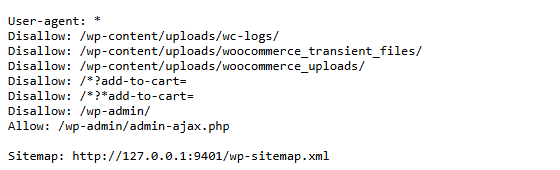
Look for a block that starts User-agent: OAI-SearchBot or User-agent: ChatGPT-User followed by
Disallow: /. That tells ChatGPT to stay away. Also check for User-agent: * followed by Disallow: /,
which blocks everyone. Our guide to
robots.txt for AI crawlers explains what to
allow and what's safe to block.
Step 3: check nothing blocks them at the firewall
robots.txt is a polite request. A firewall is a locked door. Security plugins, hosting firewalls and CDNs like Cloudflare can block AI crawlers outright, and some have an "AI bots" switch that may be on without you knowing. Look in your security plugin's bot settings and, if you use a CDN, its bot or AI crawler settings. If OAI-SearchBot is blocked there, robots.txt doesn't matter.
Step 4: check your products carry structured data
Open one of your product pages, right-click, choose View page source and search for "@type":"Product".
WooCommerce adds this block automatically, with the name, price, stock status and, if you've filled them in,
the GTIN and brand. If it's missing, a theme, page builder or SEO plugin may have removed or replaced it.
While you're there, search for gtin and brand. These are what let ChatGPT match your product to a
shopper's question and to other stores selling the same thing. Most WooCommerce stores leave them empty. Two
guides cover them: adding GTINs and
adding a brand.
Check your store in 10 seconds
The free online checker runs 5 outside checks on your store, including this one, and gives you a score out of 5.
Step 5: check the store is live and indexable
Two settings hide a whole store:
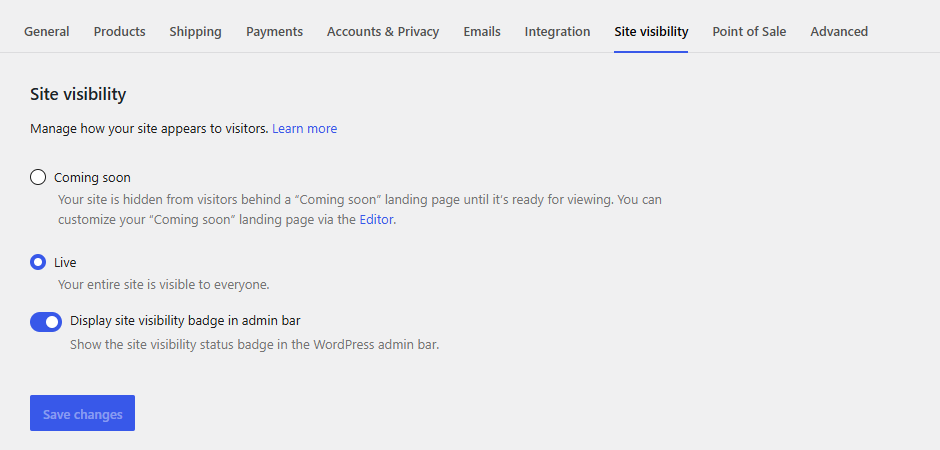
- WooCommerce → Settings → Site visibility. If it says Coming soon, visitors and crawlers see a placeholder instead of your products. Set it to Live when you're ready.
- Settings → Reading → Search engine visibility. If Discourage search engines from indexing this site is ticked, WordPress asks every crawler to skip the site. Untick it.
Step 6: fix the gaps, biggest first
If you found several problems, fix them in this order, because each one blocks everything after it:
- Store set to Coming soon or search engines discouraged: nothing else matters until this is fixed.
- Crawlers blocked by a firewall or by robots.txt.
- Product structured data missing.
- GTIN and brand missing.
- Thin product data: one-line descriptions, no attributes such as size, colour or material, no images.
Then ask ChatGPT again in a week or two. Crawlers don't revisit every page every day.
Check every product, not just one
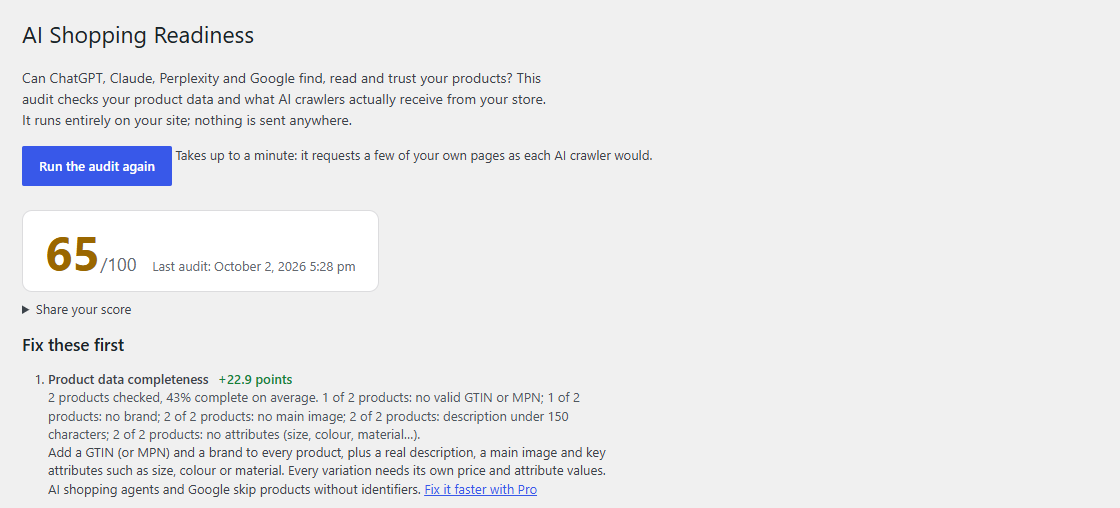
The steps above check one page by hand. The free plugin runs the same checks from inside WordPress across your whole catalogue (robots.txt, firewall blocks, structured data, identifiers, brand, descriptions and more) and gives you a score out of 100 with the fixes in order of points.