2026-10-03 · Guides
Fix the WooCommerce Store API BOM error
WooCommerce has a public product feed called the Store API. Your cart and checkout blocks use it, and so do apps and AI tools that want clean product data without reading your page design. When it works, it answers with tidy JSON. When something adds three invisible characters in front of that JSON, everything that reads it fails, often with messages like "The response is not a valid JSON response" or "Unexpected token" in the checkout.
Those three characters are a byte-order mark (BOM). This guide shows how to confirm it's the cause and how to get rid of it.
What a BOM is and where it comes from
A BOM is a hidden marker (the bytes EF BB BF) that some text editors put at the very start of a file saved
as "UTF-8 with BOM". It's harmless in a text document. In a PHP file it isn't: PHP sends it to the browser as
output before anything else, so every page and every API response from your site starts with it.
Web pages usually survive this because browsers ignore it. JSON readers often don't. The JSON is no longer valid from the first byte, and the cart, the checkout and anything else reading the Store API gives up.
The usual culprits are files someone edited by hand: the theme's functions.php, a child theme, a small
custom plugin, or wp-config.php.
Step 1: open the Store API in your browser
Go to this address, with your own domain:
https://yourstore.com/wp-json/wc/store/v1/products?per_page=1
A healthy store shows one product as JSON. Here is what our test store returns:
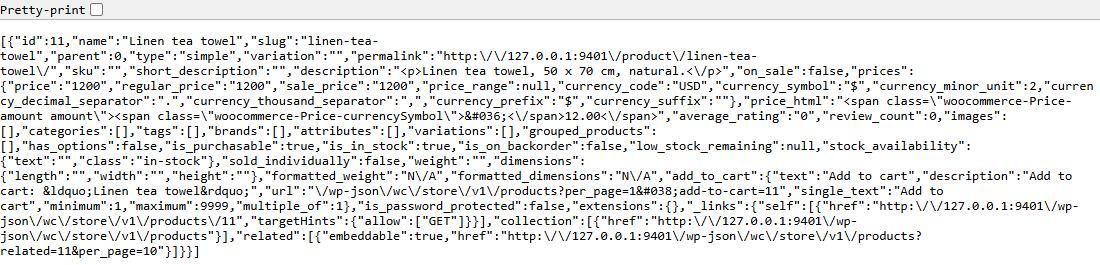
If you get an error page, a login page or nothing at all, the Store API is blocked rather than broken. Check
your security plugin and any "disable REST API" setting before you go further: those need the WooCommerce
Store API (/wp-json/wc/store/) allowed for the cart and checkout blocks to work.
Step 2: confirm the response starts with a BOM
Browsers hide the BOM, so you can't see it on screen. Two ways to check:
From a terminal (macOS, Linux, or Git Bash on Windows):
curl -s "https://yourstore.com/wp-json/wc/store/v1/products?per_page=1" | head -c 3 | xxd
If the output contains efbb bf, there's a BOM. A healthy response starts with 5b7b, which is [{.
Without a terminal: the free checker below fetches the Store API and tells you whether it starts with a BOM, among its 5 checks.
Check your store in 10 seconds
The free online checker runs 5 outside checks on your store, including this one, and gives you a score out of 5.
Step 3: find the PHP file that adds it
If your host gives you SSH access, this command lists every PHP file in your site that starts with a BOM.
Run it from the folder that contains wp-config.php:
grep -rlI --include=*.php $'^\xEF\xBB\xBF' .
Most of the time it finds one or two files, usually in wp-content/themes/ or wp-content/plugins/.
No SSH? Work backwards from what changed recently:
- Which files have you or a developer edited by hand? Start with the active theme's
functions.php. - Switch to a default theme such as Twenty Twenty-Five for a minute and check the Store API again (Step 2). If the BOM is gone, it's in your theme.
- If it's still there, deactivate plugins one at a time, starting with custom or recently installed ones, checking after each. Do this on a staging copy if your host offers one.
While you're in there, check for spaces or blank lines before the opening <?php tag. They cause the same
kind of breakage for the same reason.
Step 4: re-save the file without the BOM
Open the file in a code editor and change its encoding:
- VS Code: click the encoding in the bottom bar (it will say "UTF-8 with BOM"), choose Save with Encoding, then UTF-8.
- Notepad++: Encoding → UTF-8 (not "UTF-8-BOM"), then save.
- Windows Notepad: Save as, then set Encoding to UTF-8, not "UTF-8 with BOM".
Upload the file back to the same place. If the file belongs to a plugin or theme you didn't write, tell its author too, so the next update doesn't bring the BOM back.
Step 5: clear caches and test again
Clear your caching plugin, your host's cache and your CDN, if you use one. Then repeat Step 2. The response
should now start with [{. Add a product to the cart and go to checkout to confirm the blocks load without
errors.
Why it matters beyond checkout
AI shopping tools and product feed services increasingly read structured product data directly, and the Store API is the public, standard place a WooCommerce store offers it. A feed that fails to parse looks the same to them as a store with no products. It's a five-minute fix once you've found the file.
The free plugin checks the Store API from inside your site, along with robots.txt, structured data and your product data, and lists the fixes in order of impact.