2026-10-03 · Guides
WooCommerce robots.txt for AI crawlers: what to allow
Every AI company now runs crawlers, and many store owners have started blocking them, sometimes on purpose, sometimes because a security plugin or a copied robots.txt did it for them. The catch is that not all AI crawlers do the same job. Some collect pages to train models. Others fetch pages so an assistant can answer a shopper's question with your product in it. Block the second kind and your products quietly drop out of AI shopping answers.
This guide explains which is which, gives you a robots.txt to copy, and shows where to edit it in WordPress.
Step 1: open your current robots.txt
Go to yourstore.com/robots.txt in your browser. WordPress creates this file automatically, and WooCommerce
adds a few lines of its own. A fresh store's file looks like this:
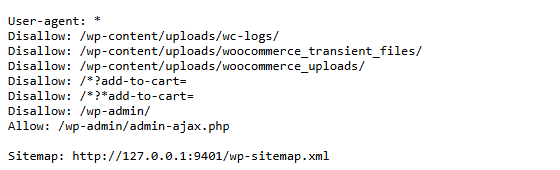
Those default lines are fine: they keep crawlers out of the admin area, the add-to-cart links (which would
otherwise fill your cart logs) and private upload folders. Nothing there blocks your products. What you're
looking for is anything extra, especially a Disallow: / under an AI crawler's name or under
User-agent: *.
Step 2: decide which AI crawlers to allow
Here are the crawlers that matter for a store, grouped by what they do.
Fetch pages for AI search and shopping answers. Allow these if you want to be recommended:
| Crawler | Company | What it does |
|---|---|---|
| OAI-SearchBot | OpenAI | Reads pages for ChatGPT search and shopping results |
| ChatGPT-User | OpenAI | Fetches a page when a ChatGPT user asks about it |
| Claude-SearchBot | Anthropic | Reads pages for Claude's search answers |
| Claude-User | Anthropic | Fetches a page when a Claude user asks about it |
| PerplexityBot | Perplexity | Builds Perplexity's search index |
| Perplexity-User | Perplexity | Fetches a page when a Perplexity user asks about it |
| Googlebot | Google Search, including AI Overviews and AI Mode | |
| Bingbot | Microsoft | Bing, which Copilot's answers draw on |
Collect pages for model training. Blocking these is your choice and doesn't stop the search crawlers above from recommending you:
| Crawler | Company | What it does |
|---|---|---|
| GPTBot | OpenAI | Training data for OpenAI's models |
| ClaudeBot | Anthropic | Training data for Anthropic's models |
| Google-Extended | Controls whether Google may use your pages for Gemini; it doesn't affect Google Search | |
| Applebot-Extended | Apple | Controls whether Apple may use your pages for training |
| CCBot | Common Crawl | An open web archive that many AI models are trained on |
One honest caveat: the user-triggered fetchers (ChatGPT-User, Claude-User, Perplexity-User) act for a person in real time, and their companies say they may not follow robots.txt for that. A firewall block still stops them. So if you want them in, robots.txt and your firewall both need to let them through.
A robots.txt you can copy
This keeps WooCommerce's sensible defaults, welcomes the search and shopping crawlers, and opts out of training. If you'd rather allow training too, delete the second block.
User-agent: *
Disallow: /wp-admin/
Allow: /wp-admin/admin-ajax.php
Disallow: /*?add-to-cart=
Disallow: /*?*add-to-cart=
Disallow: /wp-content/uploads/wc-logs/
Disallow: /wp-content/uploads/woocommerce_uploads/

User-agent: GPTBot
User-agent: ClaudeBot
User-agent: Google-Extended
User-agent: Applebot-Extended
User-agent: CCBot
Disallow: /

Sitemap: https://yourstore.com/wp-sitemap.xml
You don't need a separate block for OAI-SearchBot and the others: anything not named gets the
User-agent: * rules, which allow your products. Change the sitemap line to your real sitemap address. If
you use an SEO plugin, it's usually /sitemap_index.xml.
Step 3: edit robots.txt in WordPress
WordPress doesn't have a robots.txt editor of its own. You have three options:
- Your SEO plugin. Yoast SEO has it under Yoast SEO → Tools → File editor. Rank Math has it under Rank Math → General Settings → Edit robots.txt. Most other SEO plugins have something similar.
- A real file. Upload a file called
robots.txtto your site's root folder (the one withwp-config.php) with your host's file manager or SFTP. A real file replaces the automatic one completely, so include WooCommerce's default lines. - Ask your host. Some managed hosts control robots.txt for you, especially on staging sites.
Check your store in 10 seconds
The free online checker runs 5 outside checks on your store, including this one, and gives you a score out of 5.
Step 4: check Search engine visibility is off
There's one more switch that affects every crawler at once. Go to Settings → Reading and make sure Discourage search engines from indexing this site is not ticked. When it's ticked, WordPress asks all search engines to skip your pages, and AI crawlers follow that too.

Step 5: test the result
Reload yourstore.com/robots.txt to see the new rules. If they haven't changed, a caching plugin or CDN may
be serving the old file: clear the cache and try again.
Then check the firewall side. In your security plugin, look for settings like "block bad bots" or "block AI crawlers". If you use Cloudflare, check its AI crawler and bot settings. If these block the search crawlers, your robots.txt can be perfect and the crawlers still get an error page.
Common mistakes
- Copying a "block all AI" list. Many lists online mix training bots and search bots. Blocking OAI-SearchBot or PerplexityBot costs you visibility.
Disallow: /left over from building the site. Developers often block everything before launch and forget to remove it.- Blocking
/wp-content/uploads/completely. That folder holds your product images. AI answers and Google Shopping both show images.
The free plugin checks your robots.txt against 9 AI crawlers, tests whether your firewall lets them in, and tells you which rule to change if one is blocked.